
Integrations
Tipalti payment integration
This section outlines the integration process between Revelator and Tipalti, introducing two essential workflows:
In order for any transactions to be a success both flows need to be completed by the involved parties (Payor and Payee).
Payor Flow
You will need to complete this flow once between a Revelator Parent Account and your Tipalti Account.
Complete the Payor component of the Tipalti integration in your parent account, as described below:
- Navigate to Account > Integrations > Payment > Tipalti within the UI.
- Production URL:
https://app.revelator.pro/en/account/integrations?type=payments
- Production URL:
Show instructions
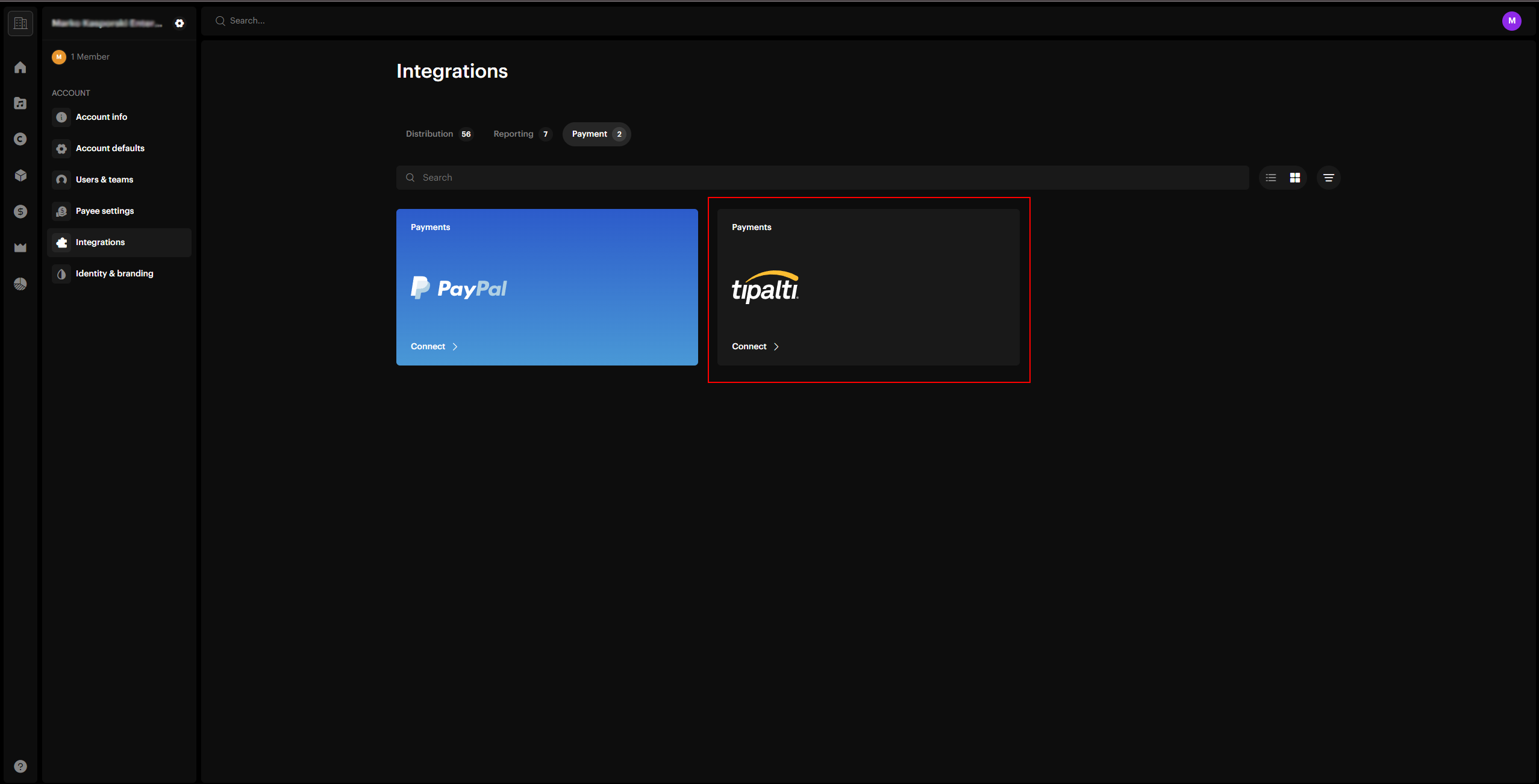
- Authorize Revelator from your Tipalti account
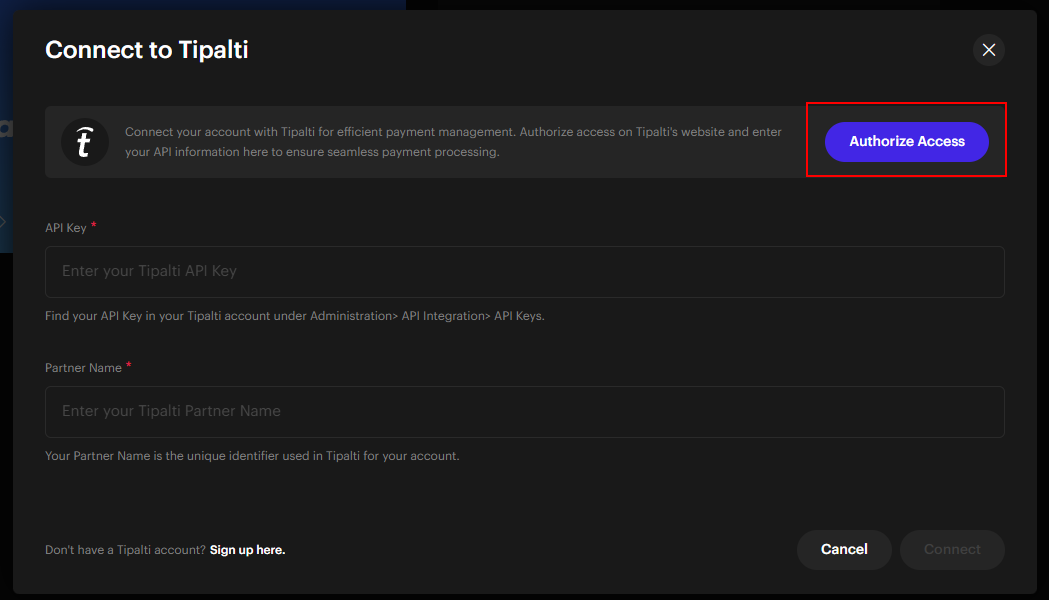
- Click on Authorize Access
- Follow the provided flow
- Once completed, you will be redirected back
Show instructions
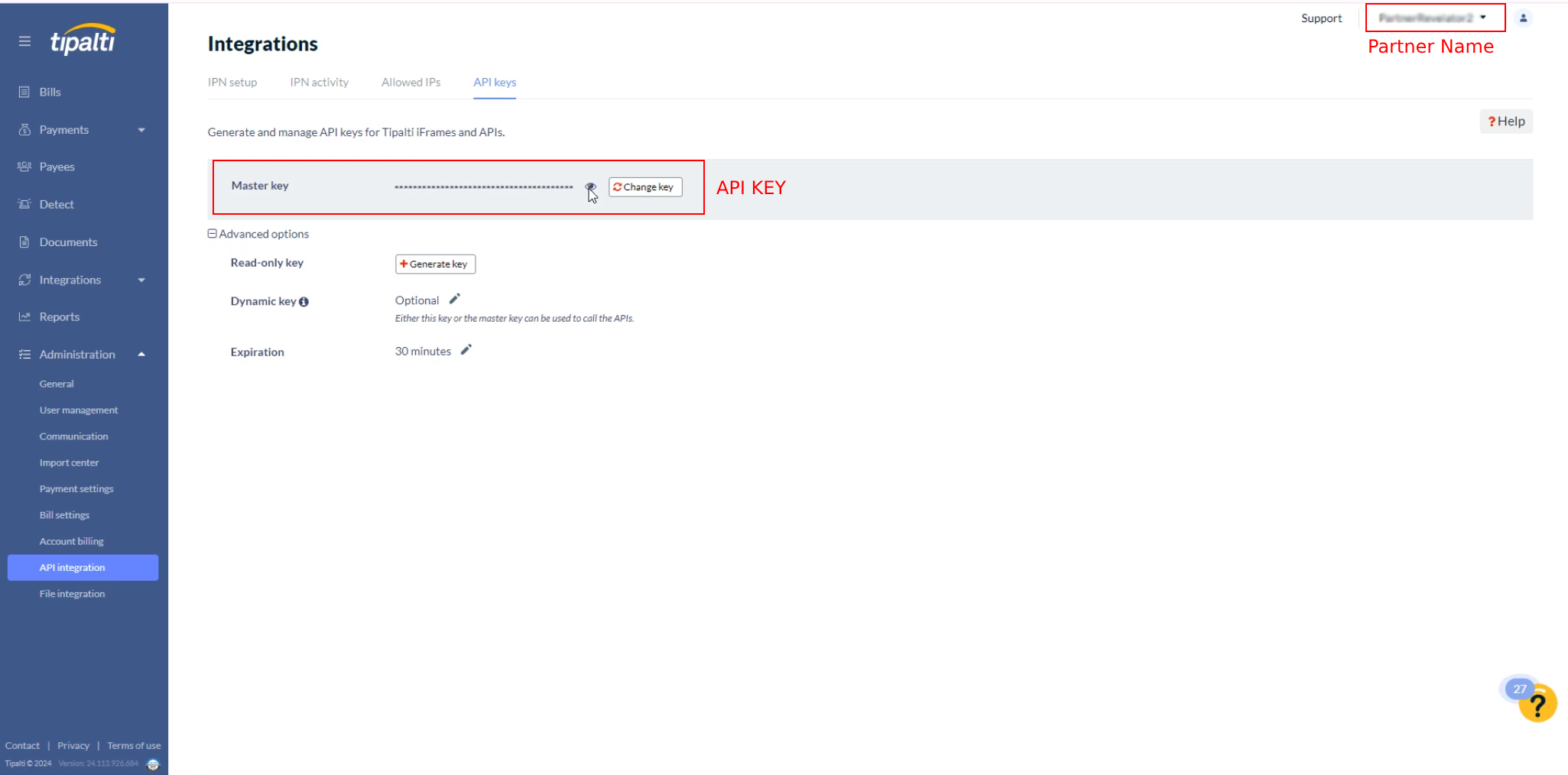
- FIll in your Tipalti API Key and Tipalti Partner Name into the form from Step 2
- This information can be found on the Tipalti Administration > API integration page
Show instructions
- Your Tipalti integration will show as connected.
Payee Flow
This flow must be completed for each Revelator Payee individually. Payees that don’t complete this flow will not be eligible for payment via Tipalti.
If you are redirecting users to a white-label environment, this flow is completed at **Account > Integrations > Payee Settings > Payment Method (field). **In this case, the instructions below do not apply.
Setting up a Payee directly without using an iFrame (as described below) may work, but this approach is not guaranteed to function reliably or remain supported in future updates.
-
Retrieve the Revelator
payeeIdfrom your own user database. -
Generate an iFrame
hashkeyUse
POST /integrations/tipalti/generateIframeHashkeywith the payee user access token to generate thehashkey
Show instructions
For more information about parameters, see Step 3 below.
Request body
| Query Param | Type | Description |
|---|---|---|
pairs required | array of objects | Contains a single entry of for each of the expected values in exact order. |
pairs.name required | string | Name of the field |
pairs.value required | string | Value |
Example Body
{
	"pairs": [
		{ "name": "idap", "value": "12345" },
		{ "name": "payer", "value": "PayerName" },
		{ "name": "ts", "value": "1706384360" },
		{ "name": "uiculture", "value": "en" }
	]
}-
Display the Tipalti iFrame to the Payee user
The iFrame needs to be displayed with the same data used to generate the
hashkey, with the addition of thehashkeyitself.
Show instructions
iFrame url
| URL Type | URL |
|---|---|
| Sandbox URL | https://ui2.sandbox.tipalti.com/payeedashboard/home |
| Production URL | https://ui2.tipalti.com/payeedashboard/home |
iFrame query params
| Query Param | Description |
|---|---|
idap required | Revelator Payee ID retrieved in the Payee Flow - Step 1 |
payer required | Partner Name used in the Payor Flow - Step 3 |
ts required | Unix timestamp in seconds of the moment iFrame is opened. Offset of more than 10 minutes will return an error. |
uiculture optional | See tipalti documentation for available cultures |
hashkey required | Hash key generated based on all other query string parameters. Payee Flow - Step 2 |
Example iFrame
<iframe
src="https://ui2.sandbox.tipalti.com/payeedashboard/home?idap=12345&payer=PayerName&ts=1706384360&uiculture=en&hashkey=853c4d06a130c45d2fed954f7769d7feb5a2b2a350dbcab3cec5560972c6ed3e"
width="734"
height="640"
frameborder="0"
style="display: block;"></iframe>
Visit tipalti documentation for more information
-
Wait for the Payee completes the iFrame form by filling in their information.
- Identification information
- Adress
- Payment method
- Tax Forms
-
Update the payment method for the Payee within the Revelator system.
Use
POST /accounting/payee/savewith the payee user access token. Full documentation for this endpoint, including the request body fields and the full Payee object, is available under Creating/Editing Payees.
Show instructions
Since we don’t support partial updates, you will first need to retrieve all payee information by calling
GET /accounting/payee/{payeeId} (see Retrieving Payees) and send the full
object back with the fields below updated.
Fields to update
| Field | Description | Value |
|---|---|---|
paymentProviderId | An ID that corresponds to a payment provider. | 1 |
paymentProviderName | A string that corresponds to a payment provider name. | Tipalti |
paymentUserId | A string that corresponds to a Tipalti user ID or a pending value. Only update if the previous payment provider was not Tipalti | null |
- The Payee is now ready to recieve payments via Tipalti.
Make sure the order of params in Step 2 and Step 3 is correct. If the order doesn’t match, the generated
hashkey will be invalid.
If the payee doesn’t complete the iFrame form, any transaction attempts in the future will fail. At this point redirect the payee back to the iFrame.